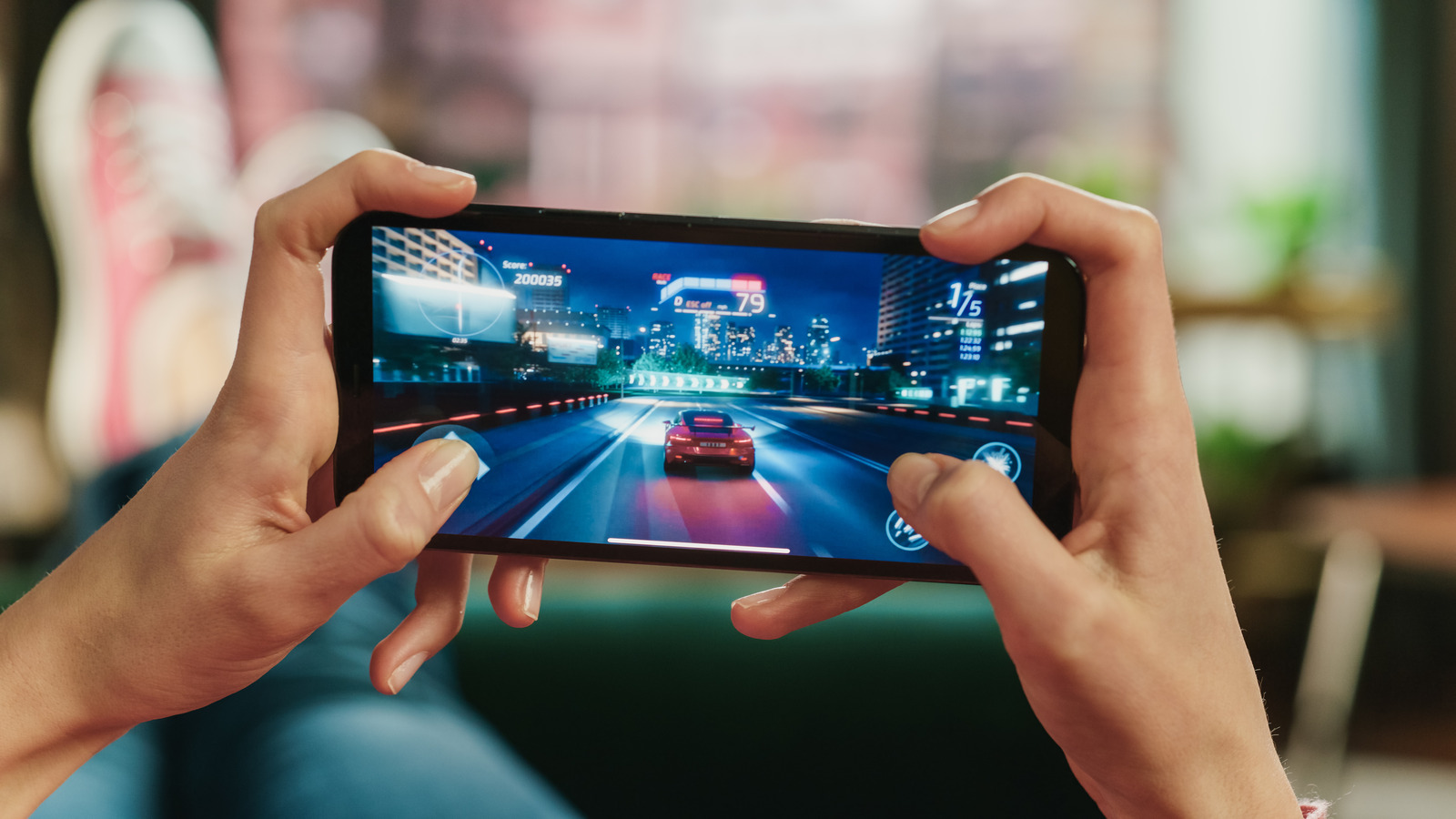
We have all been there. You upgrade to the latest, shiniest Samsung Galaxy, and your previous flagship—a device that cost you nearly a thousand dollars just a few years ago—gets tucked away in a desk drawer. It sits there, collecting dust, while its high-end processor and beautiful screen go to waste. But what if I told you that "old" phone is actually a more powerful computer than most entry-level laptops on the market today?
If you own a Samsung device from the last few years, you aren't just carrying a phone; you’re carrying a portable workstation. By using a feature called Samsung DeX, you can transform that retired handheld into a fully functional desktop computer. Whether you want to set up a dedicated home office on a budget, create a distraction-free writing station, or build a permanent media hub for your living room, repurposing your old Galaxy is one of the smartest tech moves you can make this year.
What is Samsung DeX?
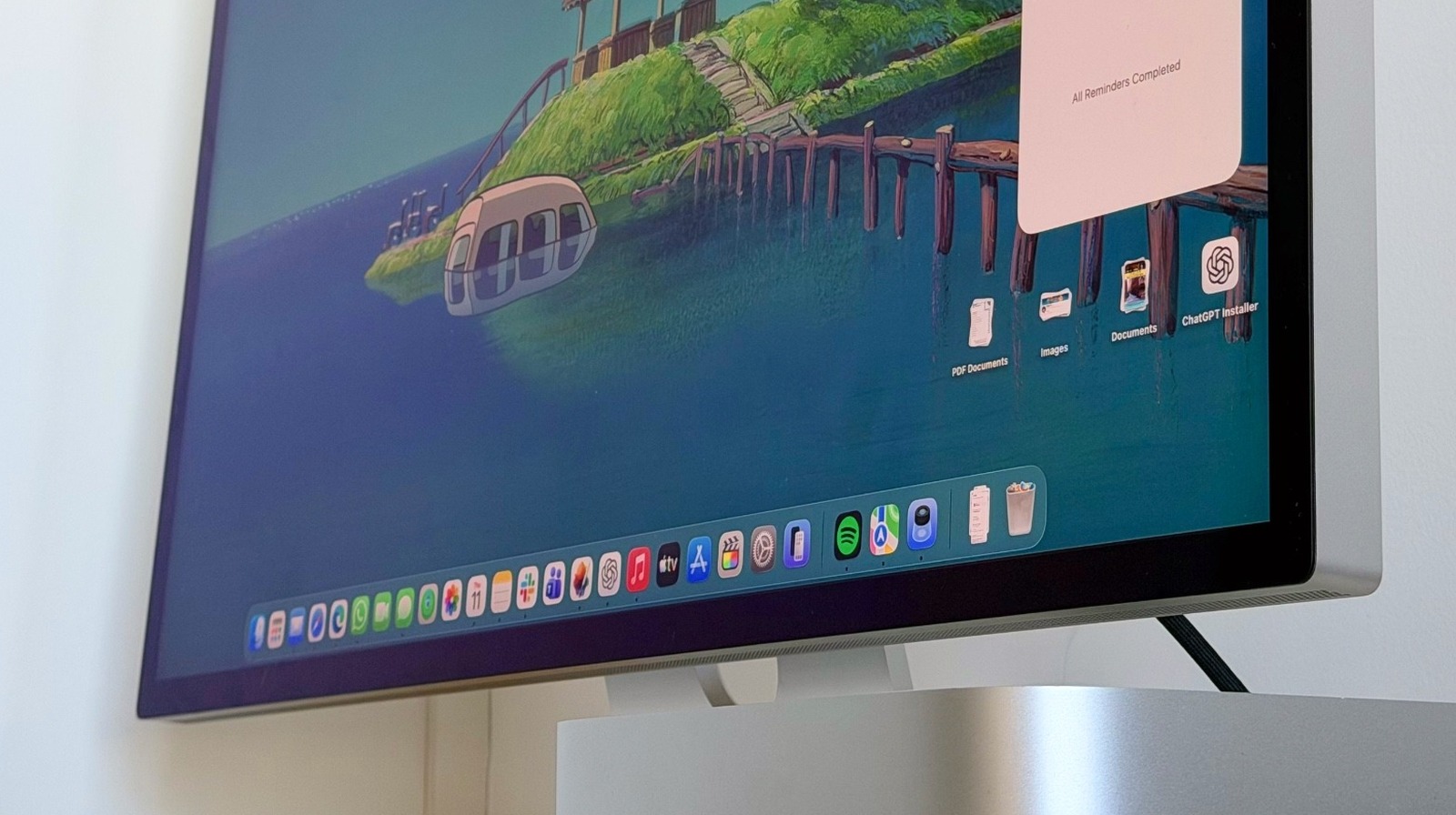
At its core, Samsung DeX (short for "Desktop eXperience") is a software platform that extends your smartphone's interface into a desktop environment. When you connect your phone to an external display, it doesn't just mirror your small screen; it triggers a completely different UI. Imagine a Windows-like taskbar, resizable windows, and the ability to drag and drop files—all powered by the processor inside your phone.
To turn your Samsung phone into a desktop, you simply connect it to an external monitor via a USB-C to HDMI adapter or a multi-port hub. Once the connection is established, the phone automatically launches DeX mode. This provides a window-based interface where you can use a keyboard and mouse to browse the web, edit documents, or manage your emails just as you would on a PC.
Compatibility: Does Your Device Support DeX?
Before you start hunting for cables, you need to ensure your device is part of the DeX family. Samsung has been generous with this feature, including it in almost every flagship since 2017.
Samsung DeX is compatible with:
- Galaxy S Series: Every model from the Galaxy S8 through the current S24 Ultra.
- Galaxy Note Series: From the Note 8 through the Note 20 Ultra.
- Foldables: All Galaxy Z Fold models. Interestingly, the Z Flip 7 is the first of the smaller foldables to officially support DeX (older Z Flip models generally do not support video output over USB-C).
- Tablets: Galaxy Tab S4 and newer (S5e, S6, S7, S8, and S9 series).
If you have a mid-range "A" series phone, it likely won't support DeX, as these devices often lack the "DisplayPort Alt Mode" hardware required to output video through the USB-C port.
Hardware Checklist: The Essentials for Your Mini-PC
One of the best things about this setup is that it doesn't require expensive, proprietary hardware. You likely already have some of these pieces lying around.
- The Video Connection: For the most stable experience, I recommend a USB-C to HDMI multi-port hub. Look for one that includes at least two USB-A ports and a USB-C charging pass-through port.
- Peripherals: You will need a mouse and keyboard. While wired versions work through a hub, Bluetooth peripherals are cleaner as they keep your ports free.
- Power Delivery (PD): This is crucial. Running a desktop environment and outputting video is intensive. Using a hub that supports "Power Delivery" allows you to keep the phone charged while you work.
- The Monitor: Any monitor or TV with an HDMI input will work. Even an old 1080p monitor from the back of the closet will feel like a massive upgrade over a 6-inch phone screen.

Pro Tip: If you don’t have a mouse handy, you can actually use your phone’s screen as a giant touchpad once it's connected to a monitor. Just swipe down the notification shade and tap "Use phone as touchpad."
Step-by-Step Setup Guide
There are two primary ways to get DeX up and running: the Wired Method and the Wireless Method.
Option 1: The Wired Method (Most Reliable)
The wired method is the gold standard for productivity because it offers the lowest latency and the highest resolution (up to 4K on supported displays).
- Plug your USB-C hub into your phone.
- Connect an HDMI cable from the hub to your monitor.
- Connect your mouse and keyboard (either via USB or Bluetooth).
- Connect your phone's charger to the hub’s power-in port.
- A DeX logo should appear on the monitor. If it just mirrors your phone screen, swipe down the notification panel on your phone and select the "DeX" icon to switch modes.
Option 2: The Wireless Method (For Smart TVs)
If you have a Samsung Smart TV (2019 or later) or a monitor that supports Miracast, you can go completely cable-free.
- On your TV, ensure it is set to receive a screen share.
- On your phone, swipe down the Quick Settings and tap DeX.
- Select "DeX on TV or Monitor."
- Choose your display from the list and tap "Start Now."
Comparison: Wired vs. Wireless DeX
| Feature | Wired Connection | Wireless DeX |
|---|---|---|
| Latency | Near-zero; perfect for typing/gaming | Noticeable lag; best for video/slides |
| Resolution | Up to 4K (depending on hub/phone) | Usually capped at 1080p |
| Stability | Rock solid | Dependent on Wi-Fi strength |
| Best For | Heavy multitasking & office work | Quick presentations & media streaming |
Performance and Real-World Use Cases
You might be skeptical about a three-year-old phone handling "desktop" work. However, the performance benchmarks for these devices are surprisingly resilient. For instance, tests show that Snapdragon-equipped Samsung flagships from the S21 series and later can handle up to 5 concurrent application windows in DeX mode without thermal throttling.
Desktop Productivity
Most Android apps are surprisingly capable in DeX mode. The mobile versions of Microsoft Word, Excel, and PowerPoint feel almost identical to their desktop counterparts when used with a keyboard and mouse. Chrome and Samsung Internet both support "Desktop Site" mode by default in DeX, allowing you to use complex web apps like Google Docs or Canva without issue.
Entertainment and Media
Because flagship Samsung phones have high-end DACs and video processors, they make incredible media servers. An old Galaxy S10 or S20 can easily drive 1440p YouTube playback or stream high-bitrate 4K movies from Plex or Netflix onto a larger screen.
Gaming: The "Console" Experience
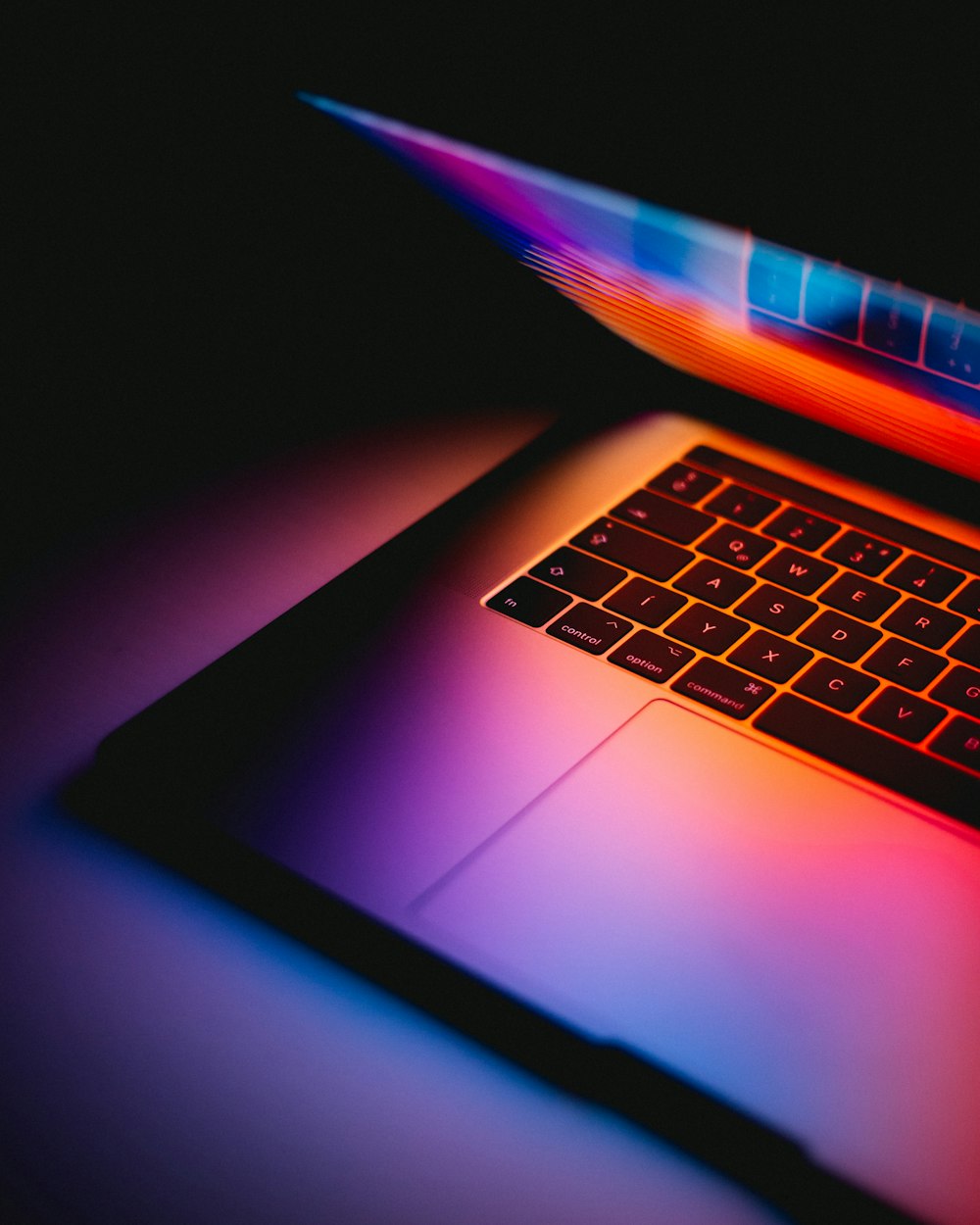
By pairing a PlayStation or Xbox controller via Bluetooth, your old phone becomes a dedicated gaming console. While mobile games like Genshin Impact look great on the big screen, the real power lies in Cloud Gaming. With an app like Xbox Game Pass or NVIDIA GeForce Now, your old phone can stream AAA PC titles to your monitor with impressive clarity.

Beyond DeX: Other Ways to Repurpose Your Phone
If you don't need a desktop PC, there are other high-utility ways to keep your old device in the rotation.
The Smart Home Command Center
Using the Galaxy Upcycle program (found in the SmartThings app), you can turn your old phone into a dedicated smart home hub. You can configure the phone’s sensors to listen for a baby crying or a dog barking and send an alert to your primary phone. Or, simply mount it on the wall as a permanent dashboard to control your lights, thermostat, and security cameras.
Repurposing an old device this way isn't just eco-friendly; it's healthy for your tech ecosystem. Using an old device as a dedicated hub or media server can reduce the battery cycle load on your primary smartphone by approximately 15-20% daily, extending the lifespan of your new $1,000 investment.
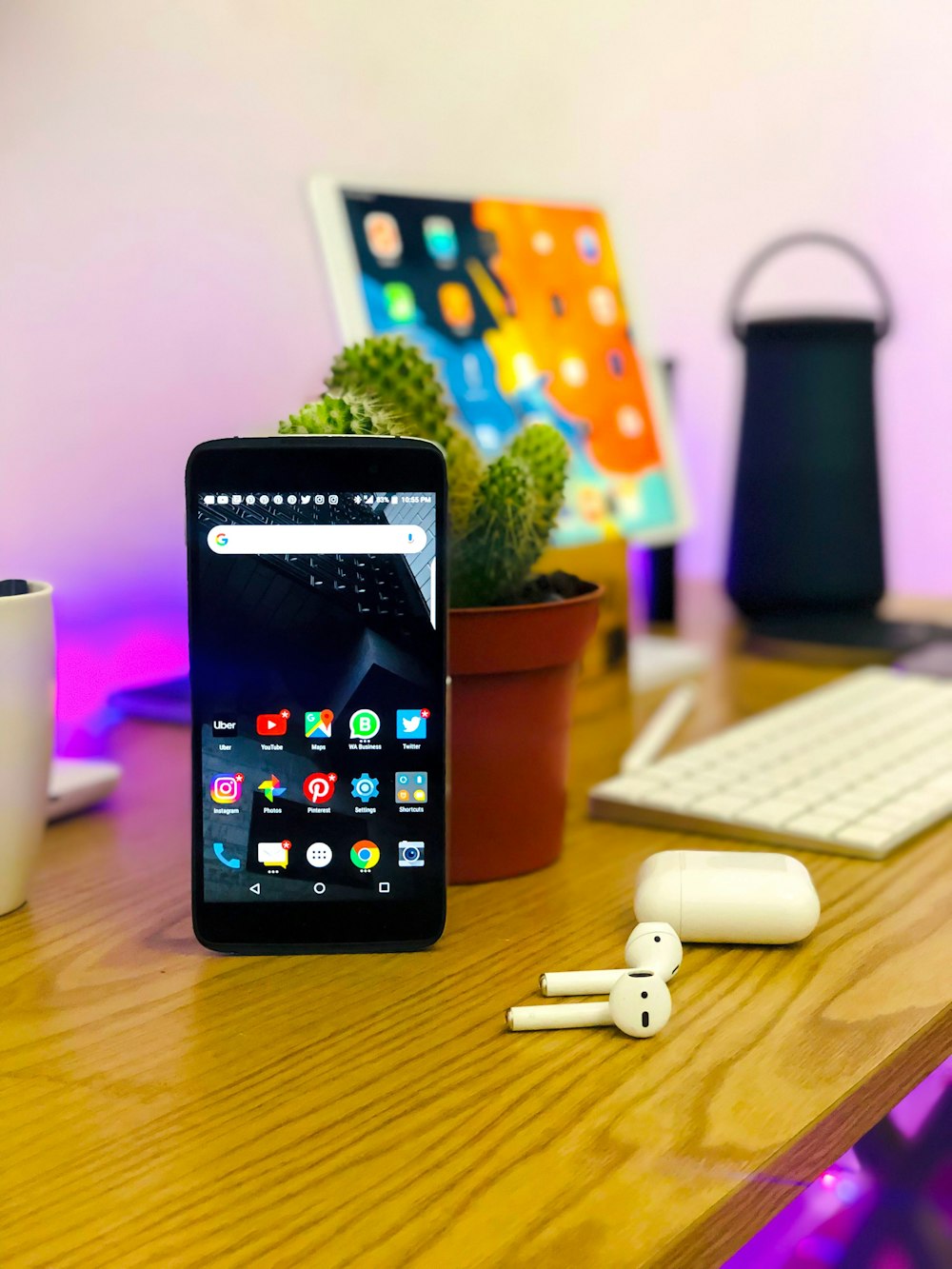
Dedicated Media Server
If your old Galaxy is a model that still has a microSD card slot (like the S20 or Note 20), you can load it with a 1TB card and turn it into an offline media powerhouse. This is perfect for car trips or off-grid cabins where Wi-Fi isn't available.
Troubleshooting Common DeX Issues
While DeX is incredibly polished, you might run into a few hiccups:
- Blurry Resolution: If the image looks soft, go to Settings > Samsung DeX > Display Resolution. Note that high resolutions often require the phone to be connected to power via the hub.
- Apps Not Resizing: Some apps are designed strictly for mobile. To fix this, go to DeX Settings > DeX Labs and toggle on "Force apps to resize." This will allow you to window almost any app.
- Overheating: If you are running five windows at once on an older S8 or S9, the phone might get warm. I recommend using a hub that keeps the phone positioned so air can circulate around the back glass.
FAQ
Q: Can I use DeX on my laptop screen? A: Yes! By downloading the "DeX for PC" application on your Windows or Mac laptop, you can plug your phone into your laptop's USB port and run DeX in a window. This is great for moving files between your phone and your computer seamlessly.
Q: Do I need a special Samsung-branded cable? A: No. While Samsung used to sell a specific "DeX Station," any high-quality USB-C to HDMI adapter or hub will work. Brands like Anker or Satechi offer great budget-friendly options.
Q: Can I take phone calls while in DeX mode? A: Absolutely. You can answer calls and respond to texts directly through the DeX interface. If you don't have a headset, the audio will come through the phone's speakers or the monitor's speakers.
Conclusion
The next time you think about trading in your old Samsung for a measly $100 credit, take a second to reconsider. That device is a marvel of engineering that still packs enough punch to handle 90% of your daily computing tasks.
By spending $30 on a decent USB-C hub, you can unlock a "second life" for your phone as a desktop PC, a gaming console, or a smart home hub. It’s a win for your wallet and a win for the environment. So, go find that old Galaxy, plug it into a monitor, and prepare to be surprised by the power you’ve had in your drawer all along.